
Samsung phone or tablet
Please note: Before you begin you will need to download the Samsung email application from the Galaxy Store or the Google Play Store.

To set up your email account, you will need to:
1. Open Settings
Section titled “1. Open Settings”
2. Tap Accounts and backup
Section titled “2. Tap Accounts and backup”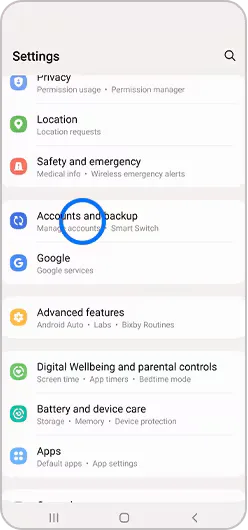
3. Tap Manage accounts
Section titled “3. Tap Manage accounts”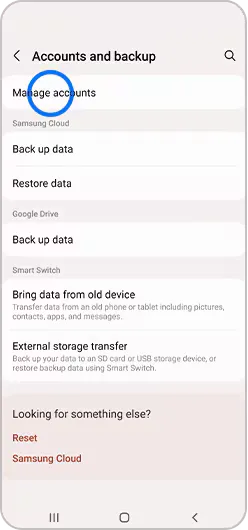
4. Tap + Add account
Section titled “4. Tap + Add account”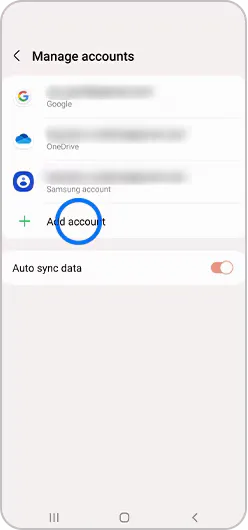
5. Tap Email
Section titled “5. Tap Email”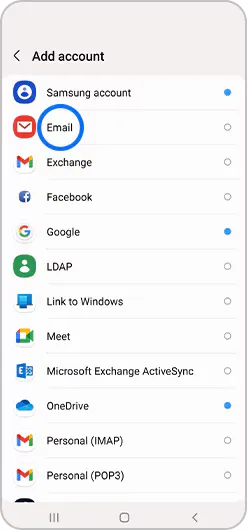
6. Select “Other” - Bottom Right icon
Section titled “6. Select “Other” - Bottom Right icon”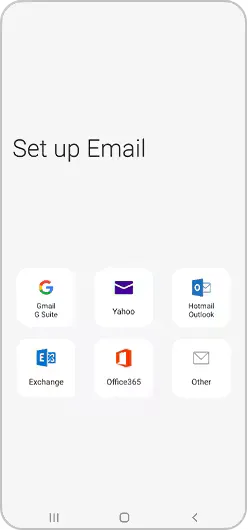
7. Enter your Email address and password, then tap Sign in or follow the instructions onscreen
Section titled “7. Enter your Email address and password, then tap Sign in or follow the instructions onscreen”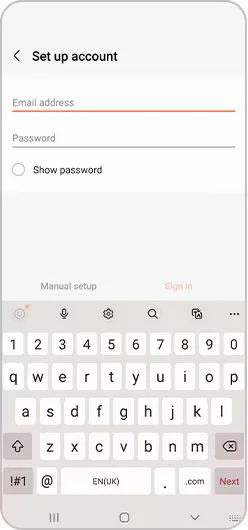
8. Choose IMAP account
Section titled “8. Choose IMAP account”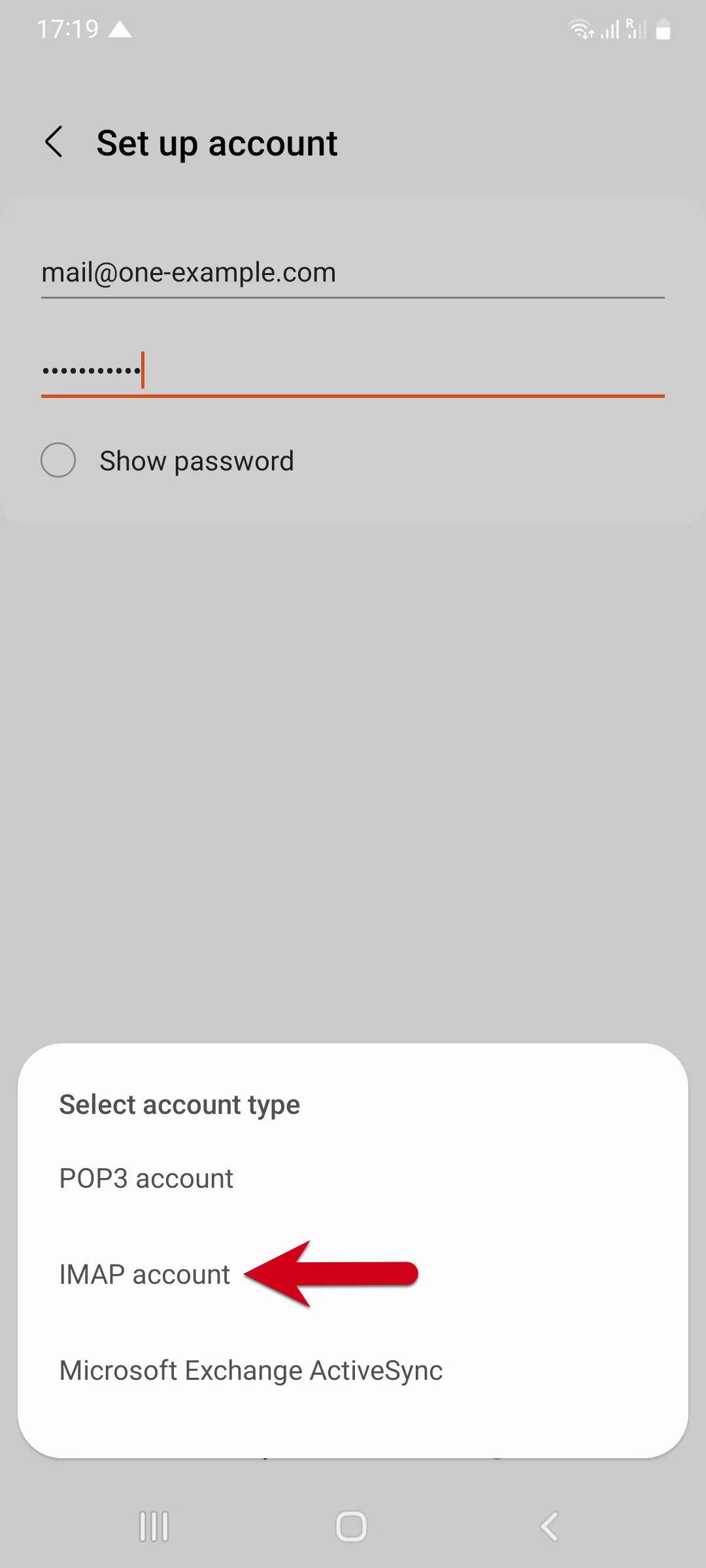
9. Enter Incoming server settings
Section titled “9. Enter Incoming server settings”You’ll now need to change the server settings to ours.
Incoming mail server:
- Username:
your email prefix - Password:
your email password - IMAP server: mail.metachroma.co
- Security type:
SSL - Port:
993 - IMAP path prefix: LEAVE BLANK
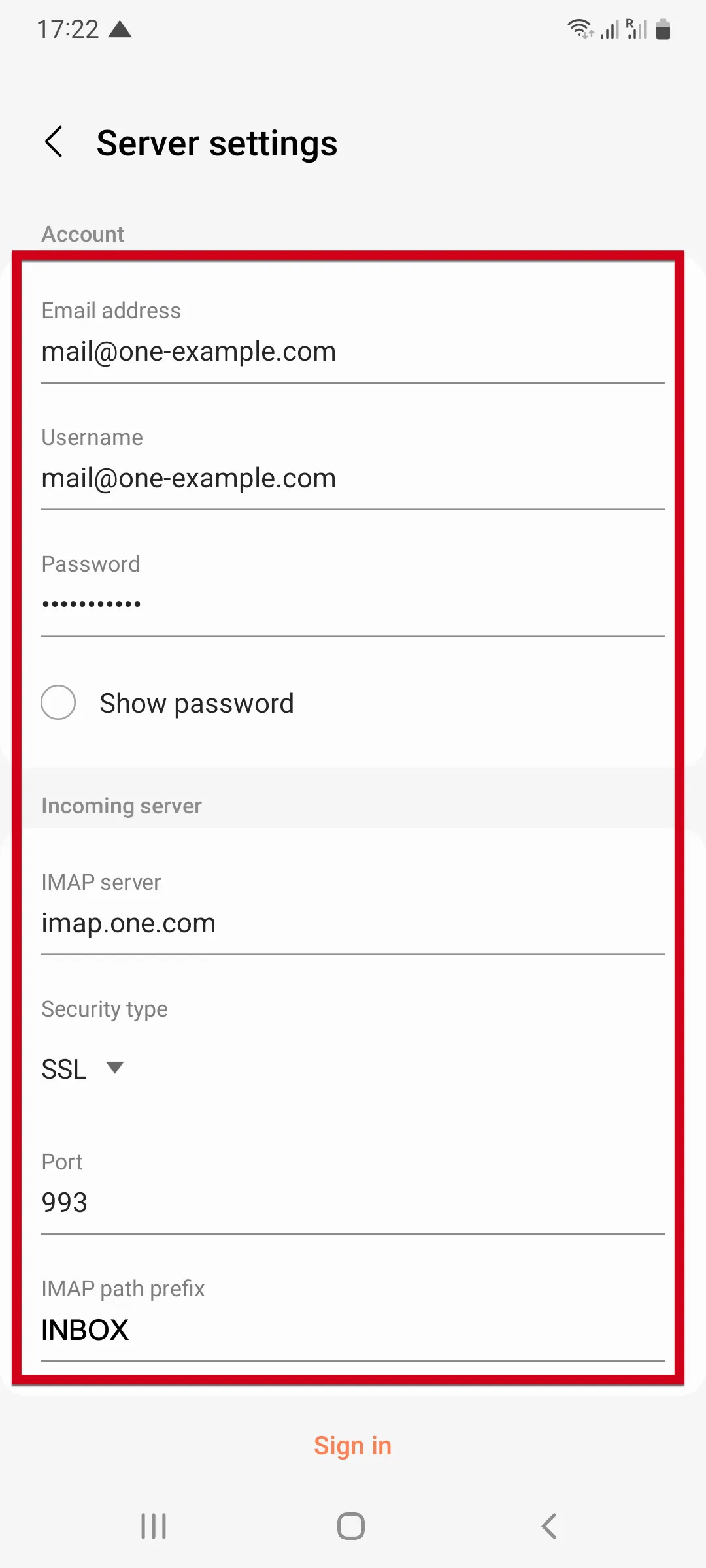
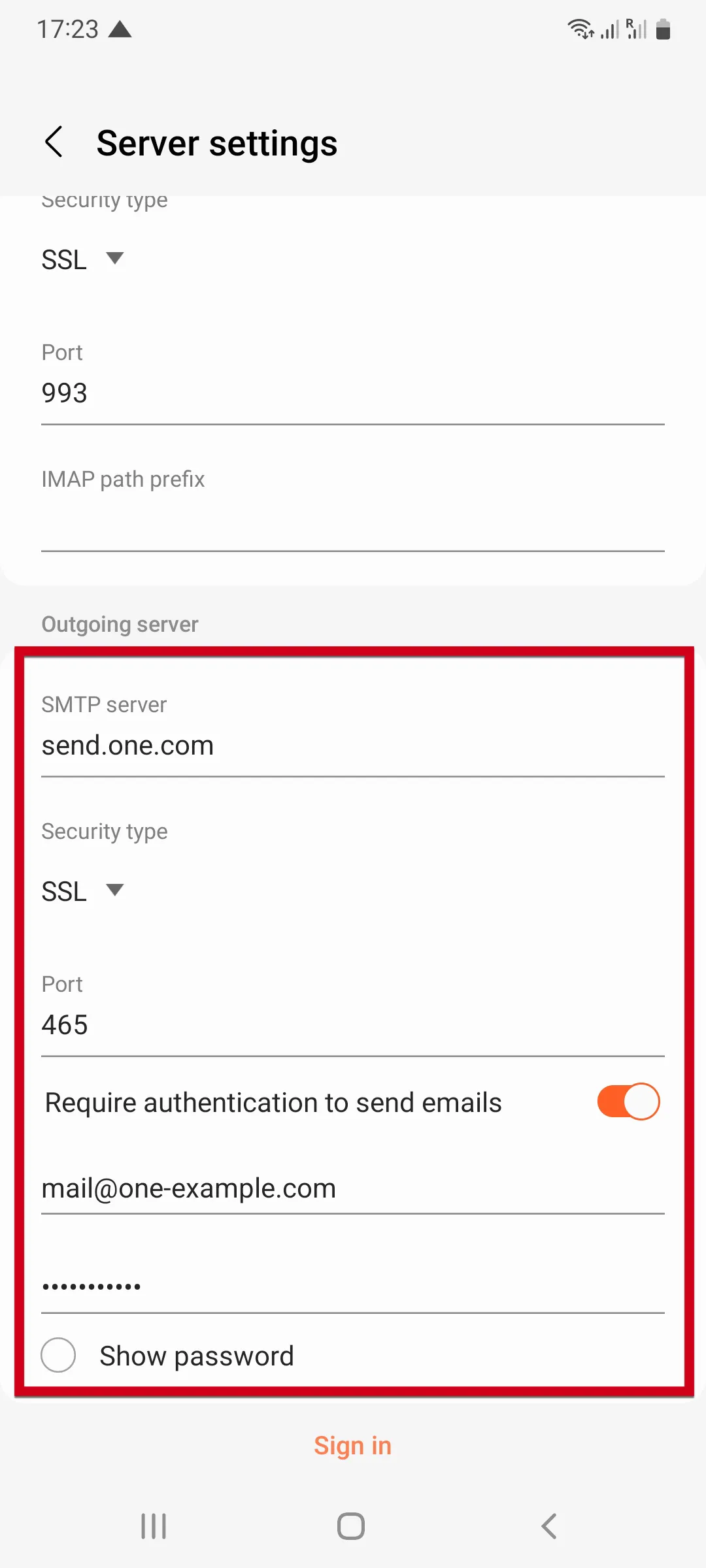
10. Enter Outgoing server settings
Section titled “10. Enter Outgoing server settings”Scroll down to Outgoing server settings and correct those as well.
Outgoing mail server:
- SMTP server: mail.metachroma.co
- Security type:
SSL - Port:
465 - Require authentication to send emails:
Yes(click the slider button to activate). - Username:
your email prefix - Password:
your password
11. Click sign-in
Section titled “11. Click sign-in”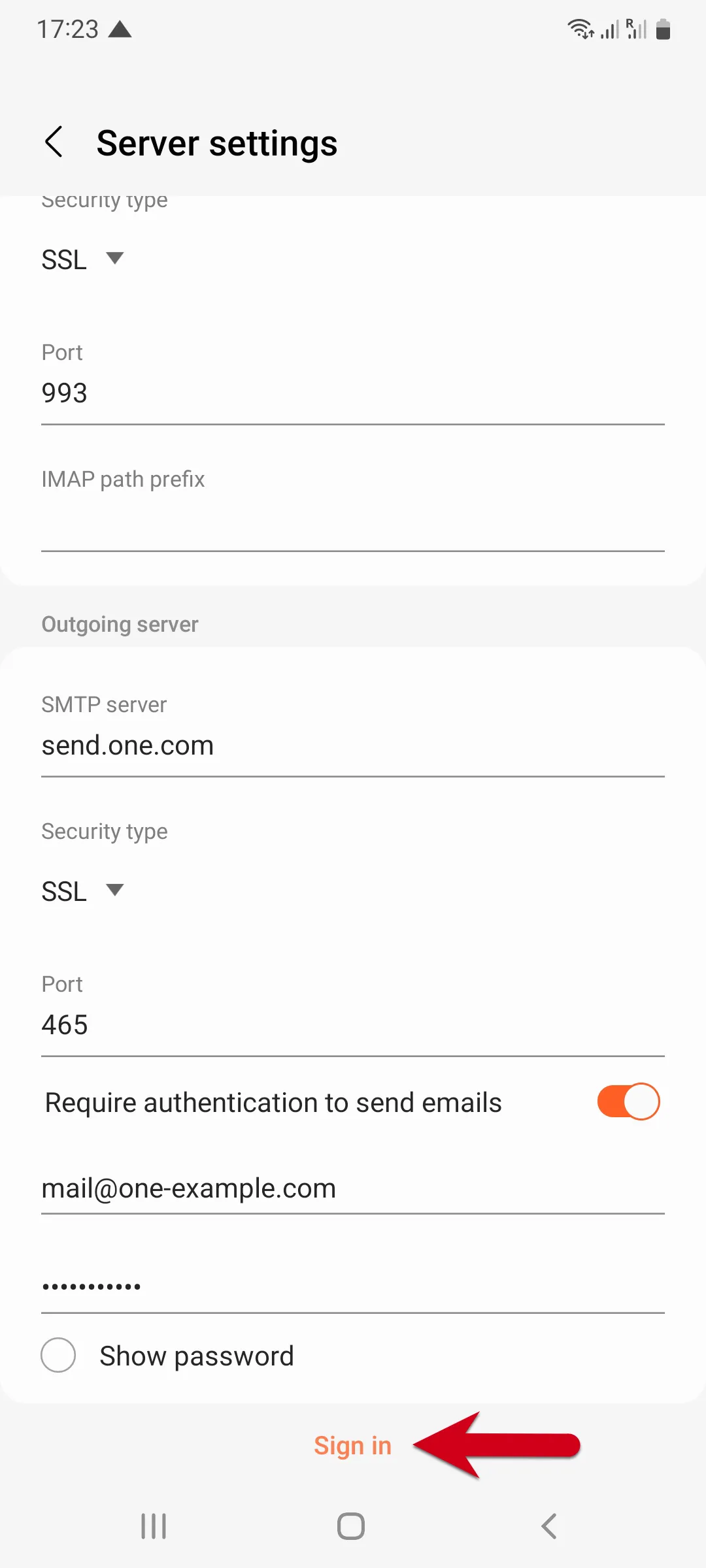
12. Confirm your preferences with regards to notifications and settings
Section titled “12. Confirm your preferences with regards to notifications and settings”You can choose how often to sync (check for email) or whether you are notified onscreen when you have a new email here, amongst other options
13. Your email account should now be set up and ready to access
Section titled “13. Your email account should now be set up and ready to access”Using from either the Samsung email app or the app from your email provider. Please note that the Samsung email app may need to be downloaded from Google Play Store